Rapid WebSphere Portal Deployments: Exploit the Strengths of Virtualization
In today’s computing world many organizations will take advantage of public and private clouds for their production software deployments. One example of such software is IBM WebSphere Portal. In version 7 IBM introduced a new capability into IBM WebSphere Portal that leverages virtualized environments.
Before examining this feature it in important to keep in mind special considerations when running IBM WebSphere Portal in a virtual environment. The nature of the underlying virtualization platform will have a greater or lesser impact on the performance of WebSphere portal. In addition, despite having significant resources available in the host environment, care must be taken not to oversubscribe the resources of the underlying platform. That is to say, testing must be done to ensure that there is sufficient physical CPU and memory to service each virtual machine. According to IBM, a good rule for memory requirement is to double the WebSphere portal instances maximum heap size and use that as the virtual machine memory configuration. In addition keep in mind, “memory paging, both within the virtual machine and the hypervisor should be strictly avoided as that can lead to performance degradation.”
The technique for leveraging virtualized environments depends on the capabilities of the host platform and a process labeled localization of a new virtual machine instance. In the product documentation IBM cites VMware ESX as an example of an appropriate host platform.
The prerequisites for implementing a new virtual machine instance include the installation and configuration of a virtualization platform such as VMware ESX. In addition, on an existing virtual machine, you must install and at least partially configure IBM WebSphere portal. In the procedure that follows you will focus on the configuration of the IBM WebSphere application server as well as IBM WebSphere portal. A link to the documentation for localizing a new virtual machine instance on Windows can be found here (http://www-10.lotus.com/ldd/portalwiki.nsf/dx/Localizing_a_new_virtual_machine_instance_on_Windows_wp7).
- Stop the WebSphere Portal server. This can be done from the /bin directory of the portal profile. A typical path, on Windows, is C:\IBM\WebSphere\WP_profile\bin. The command executed is stopServer.bat WebSphere_Portal. Depending on the configuration of your system you may need to provide user credentials.
- If not started, start server1. The command to start this server is done in the same directory as step 1. The command is, startServer.bat server1.
- Before proceeding with changes to the WebSphere environment update the host name of the virtual computer according to the procedure for the operating system you are using.
- Using the wsadmin scripting tool execute a changeHostName task. wsadmin -c “$AdminTask changeHostName -hostName newHostName”. In this example the wsadmin script is executed in console mode. Wsadmin interacts with Java management extension objects and, in this case, with the AdminTask object.
- An optional step is to rename the node structure of the WebSphere application server configuration. The purpose of this change is to ensure a unique node name in the event that the new node will be federated into a network deployment cell. The syntax for this command is wsadmin -c “$AdminTask renameNode -nodeName oldNodeName -newNodeName newNodeName”
- In addition to changes made to this point script files must also be updated to reflect the changed node name. Edit the setupCmdLIne.bat file in wp_profile\bin directory and update the property, WAS_NODE= to reflect the new name of the node referenced in step 5 above.
- One of the scripting environments for managing IBM WebSphere Portal is ConfigEngine.bat. This scripting tool is used to complete the node rename process as understood by IBM WebSphere Portal. The path to this tool is, typically, C:\IBM\WebSphere\wp_profile\ConfigEngine. From this context execute ConfigEngine.bat rename-node-in-cell-registry -DWasPassword=WASAdminPassword –DpreviousNodeName=oldNodeName. The password to be provided here is the one used by the WebSphere application server administrator. Parameters that begin with “D” are an indicator that the command line argument takes precedence over values stored in files such as wkplc.properties found in wp_profile\ConfigEngine\properties.
- Now that the environment is ready for the localization of the WebSphere Portal instance you must execute the localize-clone task. This update derives information from the WebSphere Application Server configuration. Execute ConfigeEngine.bat localize-clone -DWasPassword=password
- The final task for localizing a new virtual machine instance is to clear any existing schedule tasks. This is because existing tasks could reference the old hostname. Execute ConfigEngine.bat action-clean-scheduled-tasks -DWasPassword=password
- Optionally it is possible that your WebSphere Portal instance was set up to use an existing Windows service. If so the service still references the old host name and node name in order to resolve this you will need to execute the WASservice command to create a new Windows service entry and, for that matter, to remove the old window service entry.
- The final step to complete localization of a virtual machine instance is to restart server1 and then stop server1. Following this, start WebSphere_Portal.
A couple tips to keep in mind:
Consider using a snapshot of your new clone as a point in time recovery in your attempts to localize a new virtual machine instance. This will permit you to easily discard a failed attempt and start over.
Keep in mind your ultimate WebSphere Portal deployment scenario. For example, if you intend to deploy a WebSphere Portal farm you might wish to more completely configure your IBM WebSphere Portal before cloning the virtual machine. In contrast, if you are building an IBM WebSphere network deployment cluster you will wish to defer configuration of the first instance with regard to global security and database integration.
Perhaps the best use case for localization of virtual machines is for testing and development support. In any case the advantages of virtualization are significant and offer organizations greater flexibility and opportunities for increasingly rapid deployments.
Design, Chaos, and Tacos
One thing I have never figured out is this, who decided that hard shell tacos were a hand food. I have seen hard shell tacos that have a flat edge so they can stand up while being filled. I have seen taco holders that help support the shell while being filled. So far, though, I have not seen a hard shell taco that can be eaten without either leaving large clumps of shell and filling on the plate or causing the consumer to look like a pale, hairless baboon snatching crumbs and tumbling lumps of taco with a grossly inadequate swipe of the tongue and gapping maw.
Some software implementations leave me feeling the same way. For many years I have listened to the issue emerge when a competent engineer but otherwise ‘challenged designer speaks of how they have constructed their application with omniscient knowledge of what the user community needs. The result is a software taco, tempting but clumsy.
In his book, The Design of Everyday Things D.A. Norman shed new light on my frustration. It isn’t me, it’s the taco. When I walk on an elevator and struggle to find the right button, or fiddle repeatedly with the stove top to turn on the right burner he explains that more often than not, the design is flawed.
Recently I was at a wedding (a great place for intense geek-to-geek conversations) and the conversation turned to my conversational companion’s line of work. He expressed great frustration with the limits imposed on him in which design for function was far down the list of factors driving development of his company’s site and related applications.
In my mind, the engineer’s axiom that the appearance of an application is just the “lipstick on the pig” misses the point. The point is that more often than not, how a thing looks reveals what a thing should do. Whether a button is red, teal, or haze gray is not irrelevant. It helps explain what the owner expects the button’s role to be.
Clearly we could go crazy about this… really we could… but we are so far to the other extreme. The development of use cases are often defined by persons who know the tasks they wish to be performed but are not the ones who will perform those tasks. Design is about understanding the users whose purposes will be achieved through the use of whatever tool we may provide.
When I started out as a developer I was asked to develop a software solution to replace a byzantine collection of paper based processes. As directed, I took a copy of the procedure manual home and build a solution that automated or streamlined the manual tasks being performed by employees of that company. As soon as I demonstrated the beta I was told by the manager I had it exactly right. Scarcely had she spoken when the staff who would use the solution announced that, “Really, that’s not how we do things at all.”
The designer who believes she knows all when it comes to users’ needs is going to make lots of tacos. Sadly, users will live with it because the lack of considered design is increasingly rare.
Oh, by the way, I really like crispy tacos…. in a salad where they belong.
WebSphere Portal Beta 8 – OpenID
The first thing I did, after launching my browser and pointing at the new portal page, was to access the login page. Kinda obvious, I know but that’s where the obvious stops. I was immediately struck by an alternative logon input.

According to my understanding of the documentation, I should not need to provide any additional configuration for the OpenID associated with my Google account to work. That is, I should be able to incorporate my Google login into WebSphere Portal using the features exposed in the ‘Sign Up” interface.
After clicking ‘Sign up’ I noticed two new buttons on the profile page. I clicked Google and when I did the browser was redirected to a Google login. Once I logged into Google I was presented with an option to confirm that I wished to sign into my portal using the Google account.
I was not sure what was supposed to happen but I believed that some of the profile details would have been filled in for me on the portal’s sign up page. This is not true. After my initial attempts on my portal I went to demolotus.com and repeated the process. In both cases I, after I logged into my Google account, I filled in the required profile details and submitted the registration. In the case of demolotus.com I clicked the Google button and was logged into the portal. In contrast when I attempted this on my portal I received an error message saying, in effect, that the ID requested was not available.
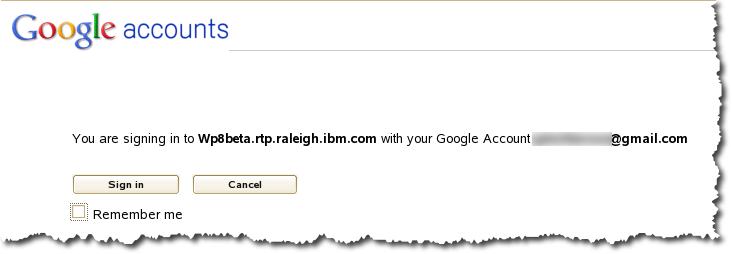
I haven’t had time to investigate farther but will do so soon. While I am disappointed it didn’t work as I expected, I am encouraged by the introduction of this feature as it can simplify management of user accounts in a public facing portal. What I will be interested in learning is how this might be facilitated on a request basis as opposed to the ‘open ended’ sign up basis.
 Taking Notez - Island Pond Consulting