Archive for the ‘WebSphere Portal’ Category
Mind Numbing Moments
When ever I advise someone on applying packs and fixes to IBM WebSphere Portal I ALWAYS say they must read every line of the documentation and follow each of the linked documents until they have determined the precise requirements for their environment. Of course sometimes I fail to follow my own advise.
Such was the case today. I am installing a new development environment for our dev team. Because I feel it is imperative that the platform for which they are developing is current, I decided to apply the most current and recommended fix packs and fixes. I scanned the very familiar text of the relevant pages and quickly surmised that the process was the same as before. 
One recent change to the site proved to be a bonus. There is now a wizard interface to guide the selection of the recommended packs and fixes. I dutifully downloaded the artifacts for the WebSphere Application Server, the WebSphere Portal Server, and the required update installers for each.
Next, as usual, I installed the WAS fix using it’s installer and then, using the HealthChecker tool for the portal, I confirmed that the platform was ready for the portal pack and fixes. The install of the fix pack failed. It was a message not unfamiliar to me. In a nutshell, the log showed that the user did not have permission to extract the archive for WP_PTF_7002. Well, I thought, maybe I should log on to Windows as the portal admin. While it is not normal to see this error on Windows (very common on Linux and Unix) I assumed that there were indeed some ownership issues on Windows Server 2008 that I had overlooked.
The operative words in this monolog are ‘quickly’, ‘surmised’, and ‘assumed’. After making ownership changes to the entire folder structure I tried again; I failed. I dove into the DeveloperWorks forums. I scanned the web. No luck seemed to be coming my way. I almost reached out to a friend at IBM to ask if he had seen this problem. And then I was struck by a thought, “What if I contact my friend and he points out something in the documentation I had overlooked.”
With reluctance only marginally overcome by the potential of real embarrassment I read (notice I did not say re-read) the docs. And there it was: a simple requirement to provide values to WASPassword and PortalAdminPWD in the wkplc.properties file. While I am inclined to quibble about the necessity or even the desirability of this, I have to admit that it was a simple overlooked requirement that cost me an hour of frustration.
Lesson learned: surmise less and read more.
Web Experience Factory 8 Beta One
This beta will be a welcome experience for developers seeking to offer a nimble client side experience. Clearly the direction of IBM is to increase the adoption of client side aggregation pioneered in the WebSphere Portal 6.1.5 update, refined in WebSphere Portal 7.0, and now, further evolved in WebSphere Portal 8 Beta 2.
First things first, get your hands on the beta by going to http://www-10.lotus.com/ldd/pfwiki.nsf/dx/08072009024448PMWEBPZ3.htm
You will probably want to get your hands on the portal as well and my last post describes a Windows install if you are so inclined. (Don’t worry Linux geeks, there’s a mention of the Linux VMWare offering as well.)
What will you find when you begin to explore the new features? Here’s a brief laundry list with a promise from me to tell more shortly:
- Support for client side mobile web UI architecture
- Easier implementation of Dojo mobile
- Builders to integrate Filenet and Sharepoint
Interestingly, some of the features that focus on mobility appear to be ‘exclusive’; If you want to develop a multi-channel application you may find “the server-side page based mobile development support available in Web Experience Factory 7.0.1 to[sic] be more suitable for such development.”
Check out http://www-10.lotus.com/ldd/pfwiki.nsf/dx/IBM_Web_Experience_Factory_8.0_Beta_One_Overview#Dojo+Mobile+and+Data+layout+templates for more details.
Installing WebSphere Portal 8 Beta 2 on Windows – How2
I had a few minutes the other day and decided to check out using the IBM Installation Manager to install the beta for IBM WebSphere Portal 8. Here is my own flavor of the install guide:
Note a PDF is available:
To install WebSphere Portal Express and IBM Content Manager Beta on a Windows 32 bit operating system you will need the following files: WAS8-1.zip, WAS8-2.zip, WP8-1.zip, and WP8-2.zip. For other platforms consider the following table:
| File size | File name | Description |
| 1.1 Gb | W AS8-1.zip | IBM WebSphere Application Sever Network Deployment Trial v8.0.0.1 Part 1 |
| 1.7 Gb | W AS8-2.zip | IBM WebSphere Application Sever Network Deployment Trial v8.0.0.1 Part 2 |
| 1.4 Gb | WP8-1.zip | IBM WebSphere Portal Beta v8 Core Repository files + IBM Installation Manager |
| 500 Mb | WP8-2.zip | IBM DB2 v9.7 on Windows 32bit |
| 868 Mb | WP8-3.zip | IBM DB2 v9.7 on Linux x86 32bit |
| 597 Mb | WP8-4.zip | IBM DB2 v9.7 on Windows 64bit |
| 927 Mb | WP8-5.zip | IBM DB2 v9.7 on Linux x86 64bit |
At the time this document was composed the files could be obtained from a download link at: https://www14.software.ibm.com/iwm/web/cc/earlyprograms/lotus/portalopenbeta/download.shtml Note that the download site also includes files for a VMWare instance.
The installation employs the IBM Installation Manager. Beginning with WebSphere Application Server V7 Feature Packs, IBM Installation Manager is used to install, modify, or update products including fix packs, infixes, and product features. It can work with local and remote repositories.
The IBM Education Assistant offers information on IBM Installation Manager. For an overview, examine the WebSphere Application Server V7 Feature Packs and locate the Installation Manager overview if you are not already familiar with IBM Installation Manager.
http://publib.boulder.ibm.com/infocenter/ieduasst/v1r1m0/index.jsp?topic=/com.ibm.iea.wpi_v6/wpswid/6.1/WID/WBIV61_WIDInstallationManager/player.html
Some organizations will be concerned about the graphical nature of the IBM Installation Manager. To this point, the manager can be silently installed. Additionally, organizations can record response files using the IBM Installation Manager for silent install of products. The Education Assistant includes a lab demonstrating this scenario applied to IBM WebSphere Application Server V8.
For this lab I am using an Amazon Web Services (AWS) Elastic Compute Cloud (EC2) instance of a Windows 2008 R2 Datacenter Service Pack 1 64bit on Intel Xenon ES430 @2.66GHz 3.94 GHz. Capacity: Memory=7.50 GB Disc (including expanded binaries): 35 GB 12 GB free.
Merge the WAS8-1 and WAS8-2 folders.
Prepare the binary folders before configuring them as source repositories used by the IBM Installation Manager.
For WebSphere Application Server move the ‘native’ folder from WAS8-2 into WAS8-1. For WebSphere Portal move the db2 installer into the native folder of the WP8-1\WP8_Express\native folder. For this lab the file moved is found in WP8-4\native and is named db2installer.win64_8.0.0.20119222311.zip.
Install the IBM Installation Manager
The installer is located in the expanded binary file WP8-1 in the IIM_V15 folder and is named install.exe. (figure 1)

Figure 1
Select the package for the IBM Installation Manager and click the Next button. (figure 2)
 Figure 2
Read the license agreement and if you wish to install the product select the radio button to accept the license agreement and then click the Next button. (figure 3)
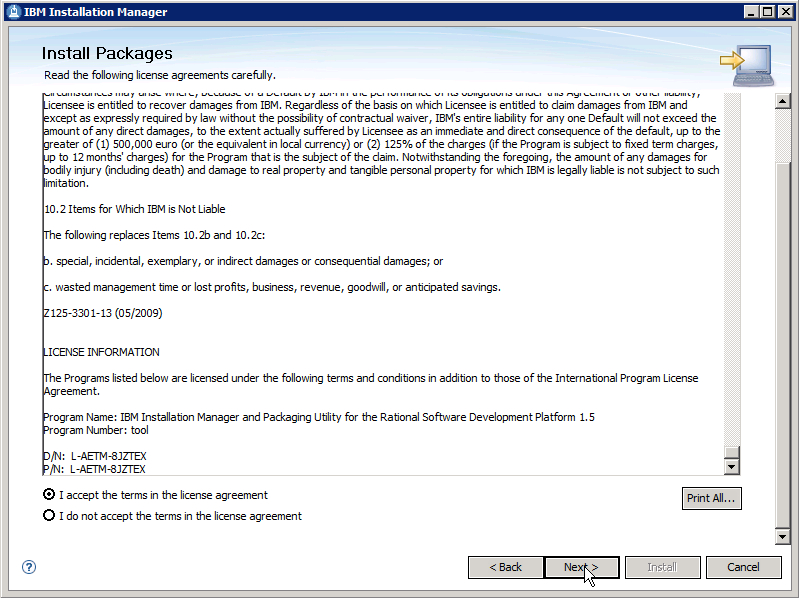
Figure 3
You can accept the default install path or change it. When ready, click the Next button to continue. (figure 4)
 Figure 4
A summary of the install settings will appear. Click the Install button if you are satisfied with the choices and settings to install IBM Installation Manager. (figure 5)
 Figure 5
If the product installs successfully a message will appear. If there is a failure review the log files and resolve the underlying issues before attempting to reinstall the product. When you are ready to continue click the Restart Installation Manager button to restart the program. (figure 6)
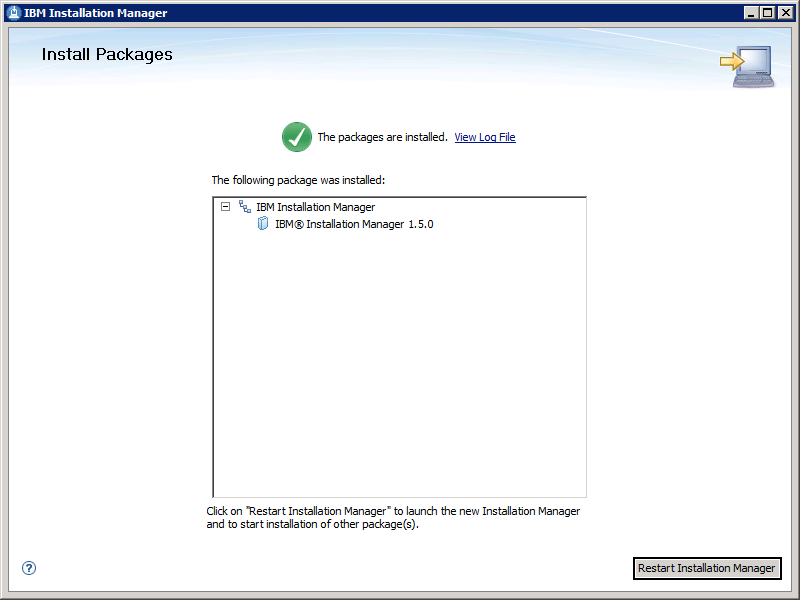 Figure 6
After installing the IBM Installation Manager configure the repository list to include the extracted IBM WebSphere Portal and WebSphere Application Server binaries downloaded and extracted for this project. The repository list bust be ordered such that the repository for WebSphere Application Server is listed first and the repository for IBM WebSphere Portal is listed second.
Steps for Configuring the IIM Repositories
The repository configuration is used to provide package data to the tool for installation. To configure the IIM repositories locate the menu bar of the application and select File > Preferences. In the preferences interface locate the left side navigation and click Repositories. Then, in the detail pane to the right click the Add Repository button. A dialog box for browsing to the repository.config file will appear. (figure 7)
You will add a repository definition for WebSphere Application Server and for WebSphere Portal. The repository.config file for the WAS is located in the WAS8-1 extracted binary location. The repository.config file for WP is located in the WP8-1 extracted binary location.
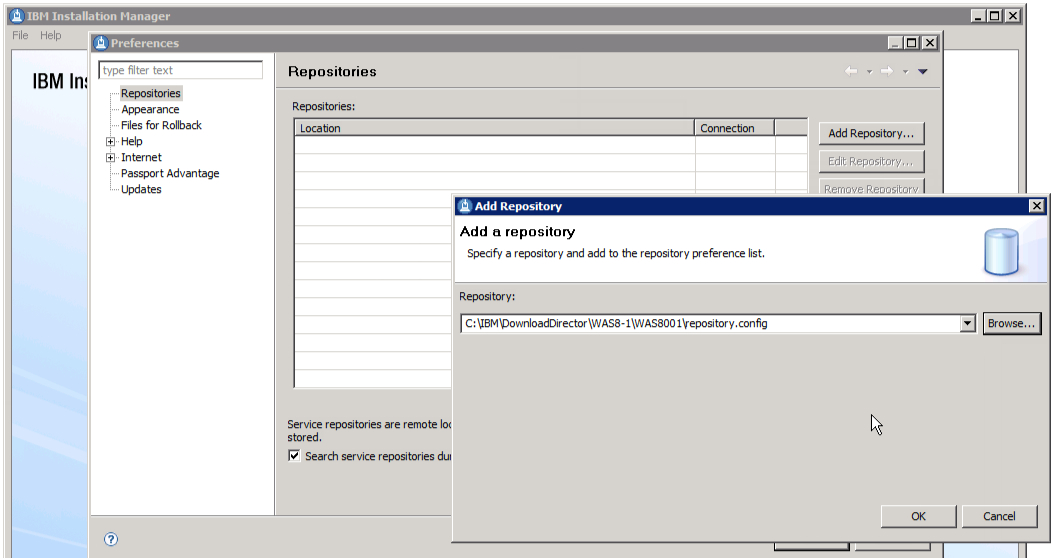
Figure 7
Once you have added the repositories ensure that they are in the correct order as this defines the order of installation. The WAS repository must be first in the list. (figure 8)
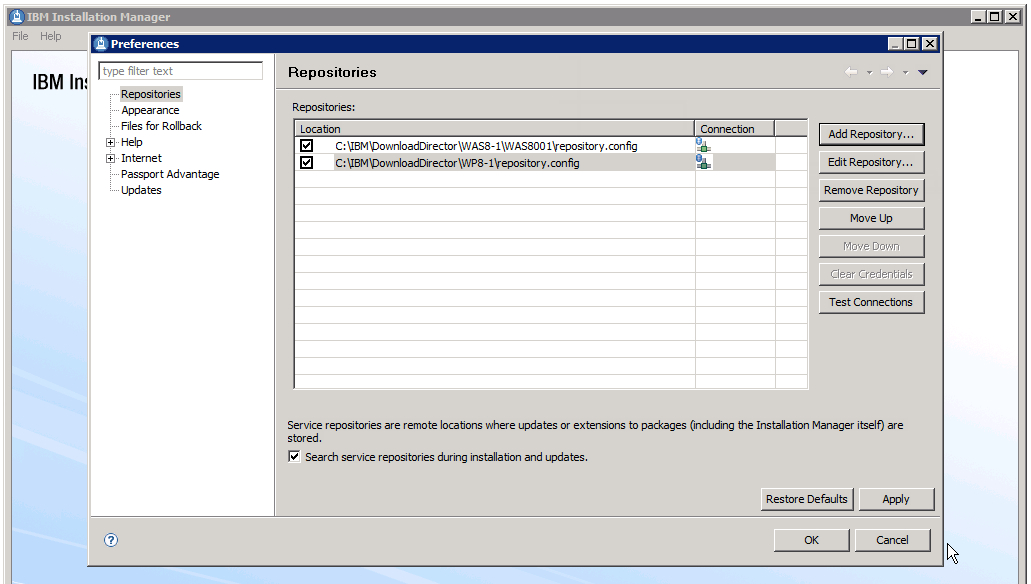
Figure 8
Click the OK button.
Click the Install link to begin installation. (figure 9)
Figure 9
Select the packages to install. In this lab you will select all of the packages. (figure 10)
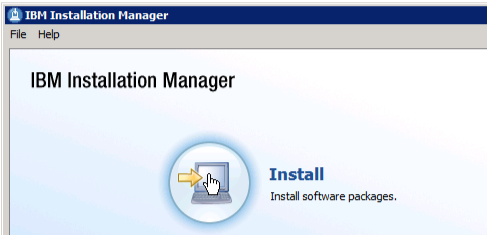
Figure 10
Indicate that you have read and whether you accept the product license. If you wish to continue, choose to accept the license and click the Install button.
The IIM stores some package installation information in a shared file location. Set this. In this example the default location is acceptable.
Click the Next button to continue. Then set the location of the application binaries for both the application server and the portal. In this lab change the path from the default to C:\IBM\Websphere…. (figure 12)
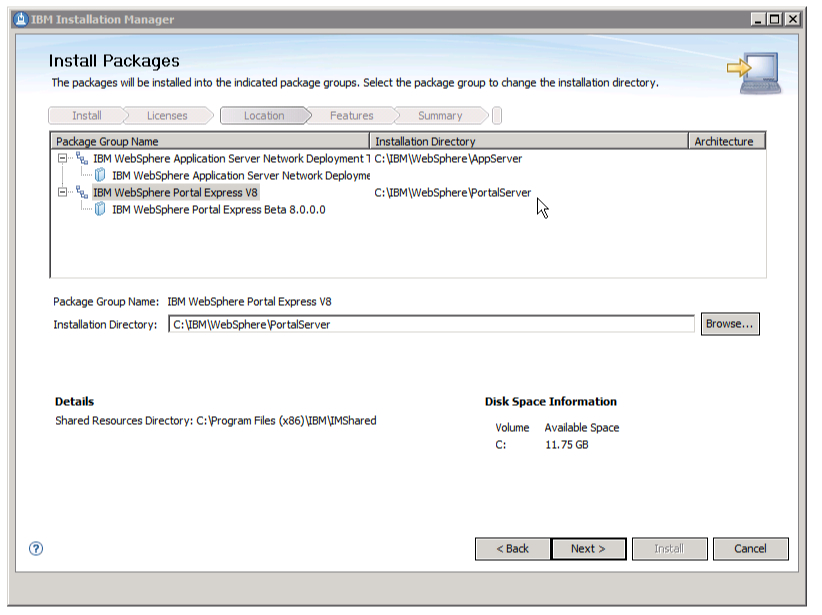
Figure 12
Be sure to set the property for each of the application binaries folders (WAS and WP8). Click Next to continue.
On the next panel in the wizard select additional product languages as needed then click Next to continue. (figure 13)

Figure 13
Set the product feature choices. In this lab the default are selected. (figure 14)

Figure 14
Credentials for the WebSphere Application Server and the WebSphere Portal administrators as well as for DB2 are to be set. The password for the DB2 administrator must match the system password policy. There is a test button for this purpose. (figures 15 & 16).

Figure 15
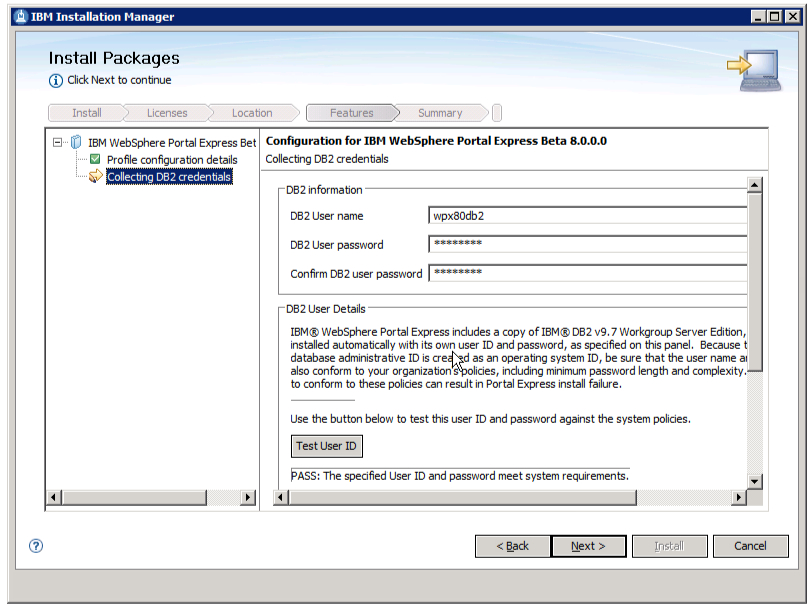
Figure 16
Click Next to continue.
The summary page should be reviewed, selections should be confirmed. When ready to install click Install to continue. (figure 17)
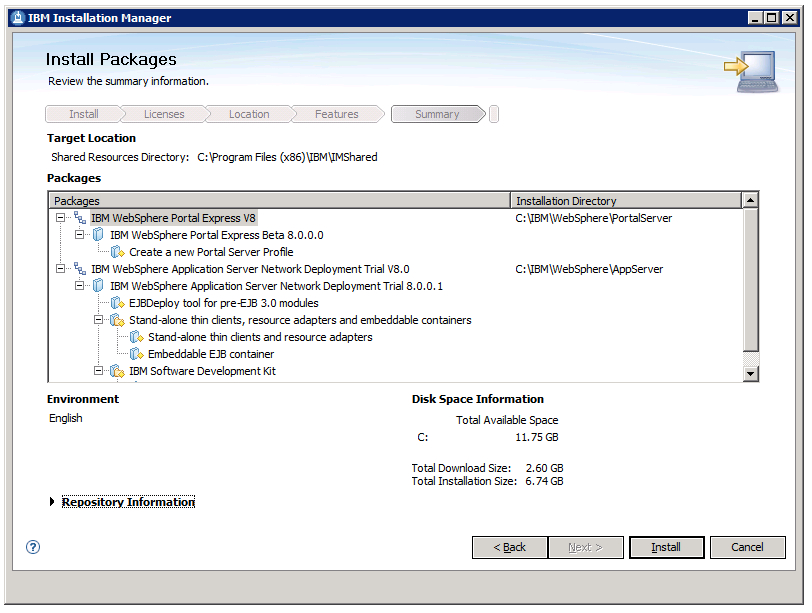
Figure 17
When the install is complete choose the radio button to launch First Steps. Then click the Finish button to conclude the install.
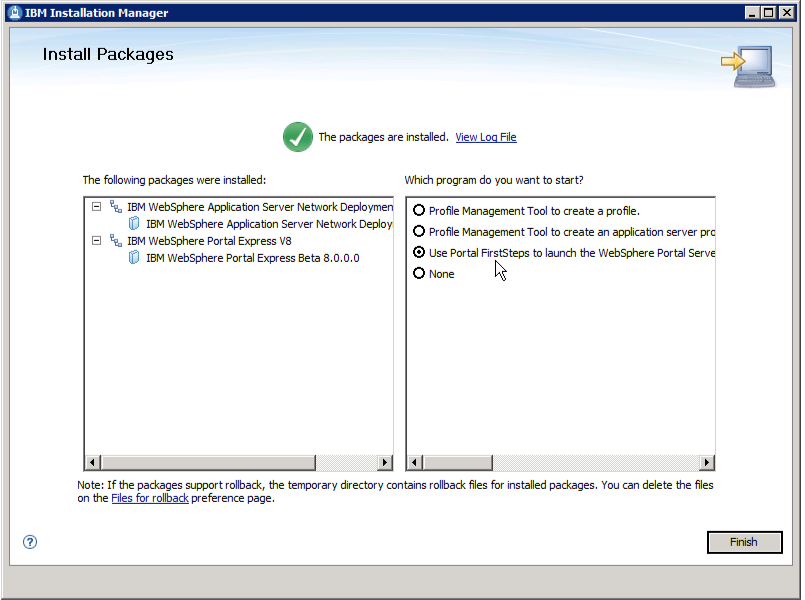
This ends the procedure guide to install WebSphere Portal 8 Beta 2 on a Windows system.
 Taking Notez - Island Pond Consulting