Archive for the ‘WebSphere Portal’ Category
Step-by-Step Building IBM WebSphere Portal Enable V 8.0 From Install to Cluster Part I
Note: This is only the first part of my document. I have seen a fair amount of interest in sorting out the install. I should have clustering ready for later this week. Also, there are a lot of formatting issues today and I don’t have time to make it all pretty… yet.
Step-by-Step Building WebSphere Portal Enable V 8.0 From Install to Cluster
Assumptions
My first assumption is that if you are reading this you are doing so with regard to using this guide in a lab and not in a production environment. There are many factors that influence choices made in a portal implementation. These factors are far beyond the scope of a guide such as this. We do not consider OS, bitness, or even whether to use the Hypervisor edition. The purpose of mentioning these is not to suggest that they are more important than other considerations but to point out a few that come to mind at the moment.
You could use this guide as a template for creating your own procedure. Frankly the screenshots annoy me but some people find them very useful. I assume that when you find errors or have suggestions you will be so kind as to visit my blog and point them out kindly. … and thanks, in advance for doing that.
In a perfect world I will get around to a more refined guide that includes Linux and more use of the command interface / response files. MAYBE even Hypervisor. Frankly, there are other Portal 8 features to explore and document so don’t get too feisty if I never get around to these.
Finally, the first most assumption: no warranty explicit or implicit is offered. This is “as is and at your own risk” content. I am not responsible if you end up divorced, childless, or deranged, or worse.
Prerequisites
Software Parts List
| PORTAL | |
| IBM WebSphere Portal and Web Content Manager Install V8.0 (1 of 5) | (CI7N3ML) |
| IBM WebSphere Portal and Web Content Manager Install V8.0 (2 of 5) | (CI7N4ML) |
| IBM WebSphere Portal and Web Content Manager Install V8.0 (3 of 5) | (CI7N5ML) |
| IBM WebSphere Portal and Web Content Manager Install V8.0 (4 of 5) | (CI7N6ML) |
| IBM WebSphere Portal and Web Content Manager Install V8.0 (5 of 5) | (CI7N7ML) |
| WAS | |
| IBM WebSphere Application Server Network Deployment V8.0.0.3 (1 of 3) | (CI7N8ML) |
| IBM WebSphere Application Server Network Deployment V8.0.0.3 (2 of 3) | (CI7N9ML) |
| IBM WebSphere Application Server Network Deployment V8.0.0.3 (3 of 3) | (CI7NAML) |
Prepare Windows
User Account
- The account used for install must be created prior to commencement of install. That is, if you create a new account, log off as the creator, log on as the created user, and proceed.
- The user must belong to the Windows local administrators group. Membership must be configured prior to the currently logged on session.
File System
There are two concerns.
- The first is use of virtualized volumes such as Program Files(x86). This concern is addressed in this installation guide.
- The second is IBM GPFS file sharing. Consult the product documentation: http://www-10.lotus.com/ldd/portalwiki.nsf/dx/Preparing_your_Windows_operating_system_in_a_clustered_environment_wp8
Install Path
In general avoid long file paths. My preference would be C:\IBM\….
I rarely use the Program Files directory structure for enterprise systems such as DB2 or WebSphere.
Also, while on the subject of file paths, be careful with file names. A WAR file name should consist of 25 or fewer characters.
Node names should be 5 or fewer characters. Keep in mind that the configuration repository node and cell names default to a concatenation with the host name.
Naming Conventions
In keeping with the previous item, remember that on Windows there is a 259 character length maximum length for file paths. Likewise, on occasion, there are issues with spaces in file paths. This should not happen but it can. Avoid spaces in file and folder names.
Project Flow
This guide will consist of several phases.
- Install the IBM Installation Manager
- Install WebSphere Portal V 8.0
- Configure a “remote” database (we will use a local instance as if it were remote for illustration purposes. DO NOT USE THIS FOR A PRODUCTION ARCHITECTURE.)
- Create an augmented Deployment Manager Profile
- Federate the primary node into the cell
- Create the cluster (static)
- Configure the external HTTP server
- Configure an LDAP repository
Configure the Source Binary Files
Extraction Options
You can extract all of the WAS and PORTAL parts identified in the table at the beginning of this guide into a single merged folder. If you do, there will be three subfolders of the parent. Portal, Setup, and WAS. You could extract the source binaries into three distinct folders. Either choice is fine.
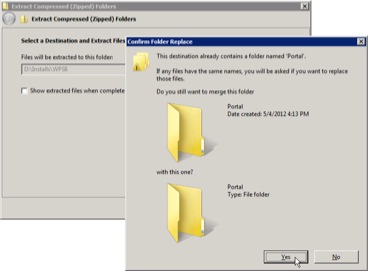
What you DO NOT have to do is figure out the arcane folder names such as W-1, W-2, and W-4, etc.
The “Setup” folder contains the IBM Installation Manager install components. The content of the other two should be self evident.
Install WebSphere Portal on Primary Node
Using IBM Installation Manager
I really like this idea and am hopeful that the implementation will live up to the promise it represents. You can point to a local downloaded repository, as is the case in this guide. Or, you could point to a live repository hosted by IBM. In addition to the simplified install process you gain better control over the WAS and Portal update procedures.
If you do not want to use the GUI the Installation Manager supports use of a response file. There is not, however, a console mode.
Install the IBM Installation Manager
If you have an existing installation of the manager you should confirm that it is version 1.5.2 by launching the manager and selecting
Help -> About IBM Installation Manager.
If the version is not correct you may upgrade or uninstall and install from the source binaries.(Figure 1)

Figure 1
Installing IBM Installation Manager consists of seven steps.
1. Locate the install program. In this example it is found in the extracted binaries folder D:\Installs\WPS8\Setup\IIM\win32. (Note: At this time there is not a 64bit version of the IBM Installation Manager shipped with the product.)

Figure 2
- Launch Install by double clicking.
- The installer will post a splash screen and then an Install Packages screen will appear. Select the package and version needed as illustrated in Figure 2.3.Accept the license agreement after reading and if you wish to continue the install.

Figure 3
5.Choose a location for the program. Due to the nature of this application it is allowed to remain in the Program Files directory structure.

Figure 4
6.On the summary page confirm the package selected for installation and choose Install.
Figure 5
7.When the installer has completed the task, a summary will appear. If successful you may restart the IBM Installation Manager and configure it so that you can install the product packages for IBM WebSphere Portal V 8.0
Figure 6
Configure the IBM Installation Manager
Once the installation manager has restarted you must configure it to reference the source repositories for the portal and the application server. Keep in mind that even when all the downloaded compressed binaries were extracted and merged into a single folder there will be at least two repositories to configure.
1. Locate the interface to add repositories by selecting File -> Preferences
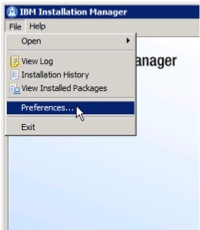
Figure 7
2.In the list of preferences you will see a reference to Repositories. Select this.
3.In the preferences window you will see an Add Repository button. Click this. You will perform this operation for both the portal and the application server repository.
4.In the Add Repository dialog box, click the browse button and navigate to one of the two repository locations. In this example the portal repository is located at D:\Installs\WPS8\Portal and in this location the repository.config file is found. Select this file and click the Open button. Steps 2 through 4 are illustrated in Figure 8
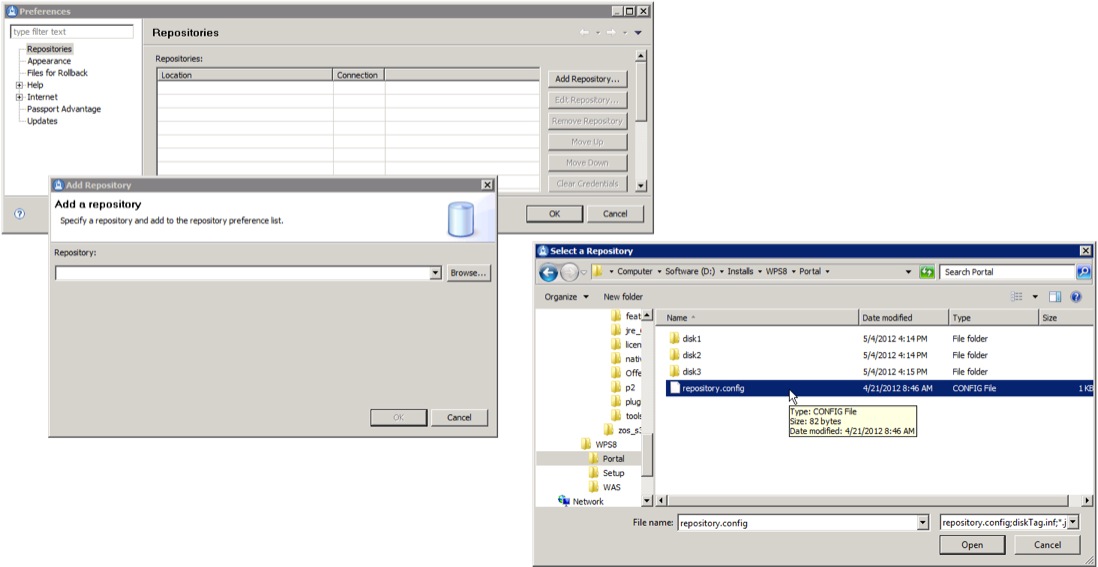
Figure 8
5. After you have added both repositories, one for portal and one for the application server, you should ensure that the application server repository is listed above the portal repository. If, as illustrated in Figure 9, the order is reversed select a repository and click Move Up or Move Down.
Figure 9
6.Once the repositories are configured click the OK button.
Install IBM WebSphere Portal V 8.0
1.On the launch page of the installer click Install.
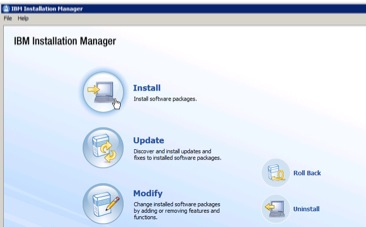
Figure 10
2.Select the packages to install. Package selection is determined by the repositories configured for the installation manager.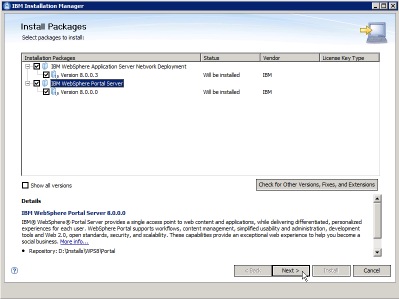
Figure 11
3.Accept the license.
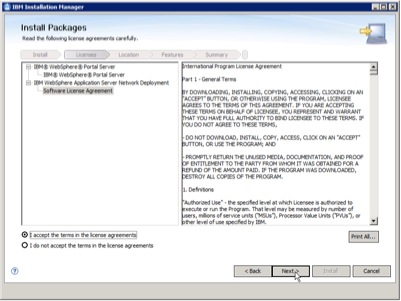
Figure 12
4.The default on some systems may be a virtualized directory. This should be changed for a number of reasons of which one is the preference for shorter, space free file paths.

Figure 13
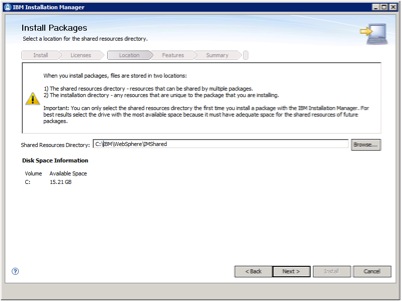
Figure 14
5.You will need to set an install path for the AppServer and PortalServer directory structures at this time.
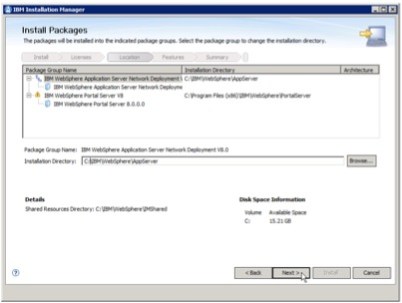
Figure 15

Figure 16
6.Select additional languages as dictated by your environment.
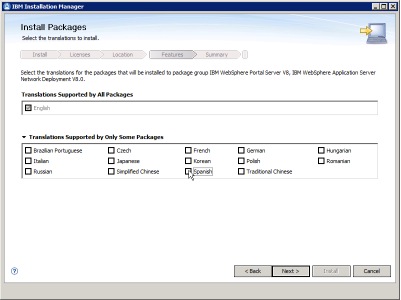
Figure 17
7.Select features for installation. In this example we have maintained the default features as illustrated in Figure 18
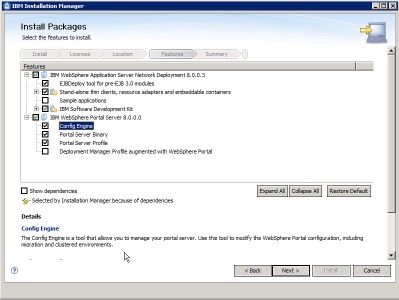
Figure 18
8.Portal configuration can be managed as “Basic” or “Advanced”
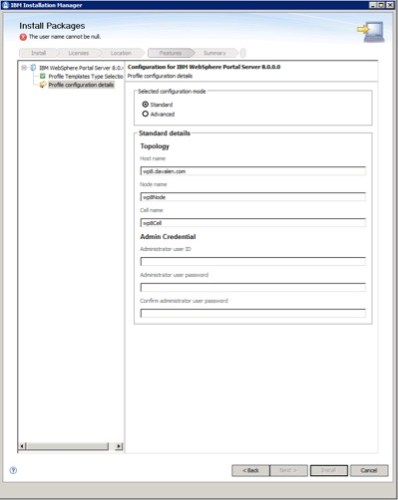
Figure 19
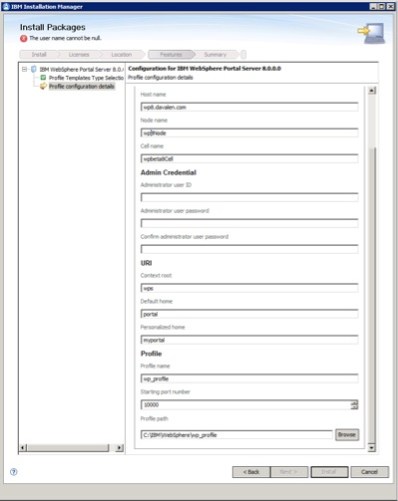
Figure 20
9.On the summary page confirm your choices and choose Install.
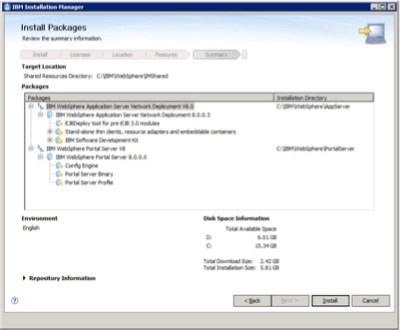 Figure 21
10.The installation will consume significant CPU resources.

Figure 22
11.Observe the status of the install. If successful the portal will already be running.
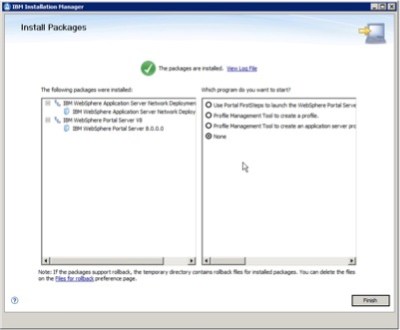
Figure 23
12.Launch a browser and confirm access to the system.
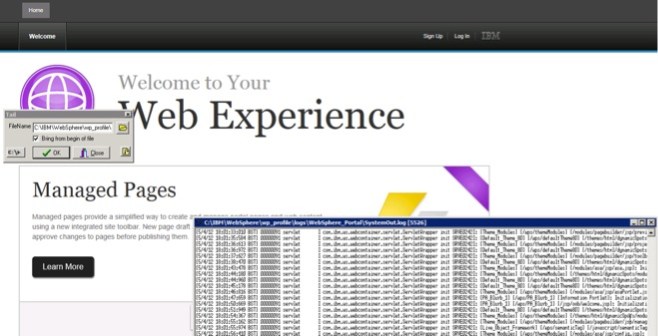 Figure 24
Perform post-installation procedures for a clustered environment
Transfer portal database to a remote database
Addressing Search Issues
Create a Profile Template
Prepare for Cluster Creation
Choose a Cluster Type / Create a Static Cluster
Prepare a Remote Web Server
Configure a User Registry for WebSphere Portal
Add Additional Cluster Members
IBM WebSphere Portal 8 is NOW Available for Download
The IBM WebSphere Portal V 8 Enable muti-platform multi-lingual edition eAssembly part number is CRI9GML.
The eAssembly part number for Web Experience Factory V8 is CRI9KML
Enjoy!
Managed Pages – First Look at a New WebSphere Portal 8 Feature
The task of managing portal pages and web content is evolving and in the next release of WebSphere Portal the integration between web content management and portal page management will grow even tighter. Recently I installed WebSphere Portal 8 Beta 3 and dove into my first examination. In the following paragraphs I talk about what I saw and learned during my sortie into this new realm.
To install WebSphere Portal 8 Beta 3 follow the procedure I described for Beta 2. The updated download links are here and from there you can link to the installation guide I provided here.
After logging into the portal I landed on the Getting Started page. I decided to take a quick look at the properties and layout of the page using a conventional approach. I navigated to the Administration pages and loaded the Manage Pages portlet. At the top of the page is a new feature. This pane, which I have dubbed the project pane, represents the state of the page as a member of a project. Projects are not new to Web Content Management but they are, so far as I know, new to page management. According to the product Wiki, “When working in a project, any changes you make to a page affect only your view of the page.

Figure 1
After the project is approved and published, the changes are then available to all users.” Welcome to version control for portal pages! The second panel is a conventional display of page properties. There is one variation to the interface as it pertains to the layout template of the page but otherwise there are no other surprises here. (Figure 1)
Returning to the Manage Pages portlet I next selected the Edit Layout portlet. Again a “project pane” and the layout pane appear. By the way, you can collapse the “project pane” to recover more useable space for managing properties or layout. In the layout pane there were not surprises here at all. However, I was a bit disappointed. I realize that this is (1) a beta and (2) the release teams efforts need to be spent on other chores but (3) it would be really nice if the content on the Getting Started Page was web content delivered through the Web Content Viewer portlet and not the “handy dandy” Information Portlet. What next?

Figure 2
I decided the best way to get a feel for how managed pages might be experienced would be to create a new project and edit a new page. Returning to the Home tab and the Getting Started Page I placed the page into the Edit Mode. Again, the product Wiki states, “There are several ways to enter edit mode: You can click Edit Mode directly in the user interface. A default project is created, with the project name being based on the page name and the date. You can change the project name later. The first thing to note is that the functionality for creating a page related project will be very familiar to users who have created pages with the Page Builder theme interface. (Figure 2).
Working from the Getting Started page I clicked the Edit Mode button. Right away a vital distinction needs to be made between making changes to a published site and making changes to a project that is not yet published. When stated this way the consequences may seem self evident. However, to a user unfamiliar with the interface they might surmise that the changes they make are not immediately visible. If they believe this, they are wrong. In this case I elected to create a new project. The properties of the project are self explanatory and for this exercise I elected to select Manual for the Publish option.
I created a new project named Demo Project. Figure 3 provides a before and after comparison of the interface as I moved through the steps to create a new project. You can select view or edit for a project from the project menu. Choosing the View on the Published site and a particular project allows you to see how one compares to another. Only the published site can be seen by the user community.

Figure 3
Now that we have an unpublished project I added a page, Demo Page. If you want to follow my experiment, make sure you have an unpublished project and place it in the edit mode as illustrated in the “after” illustration shown in Figure 3 above. Then, select the More button and choose sibling or child page. I chose sibling to simply illustrating the concept. Figure 4 demonstrates this.

Figure 4
Page creation in the context of a project such as the one illustrated in this topic places management of the portal page artifact into a Web Content Management (WCM) library. This means that “Publishing of projects can be scheduled in the same manner as other traditional WCM components. Additionally, this means that managed pages, as a form of managed content, can be syndicated from an authoring environment to a rendering environment. To my mind this is a huge leap forward in portal site development because it is very plausible that revisions to a site would not only incorporate changes to the content that authors might submit but also pages and related artifacts for presenting content. Syndication does not include propagation of portlets or other web archive (JSP for example) resources.
Before creating the page you can change to another template type. Additional page templates can be defined. Page templates are not a new feature but it

Figure 5
will be interesting to see how these are leveraged in the future as more portal and WCM administrators take advantage of the managed pages feature. See Figure 5 for an example.
Once a page and other artifacts are added to a project you will typically refine their properties. Now that we have a page it will be useful to finalize one more aspect of how managed pages work. Keep in mind that the interface seen by our administrator references the published site as well as the projects that are in progress. In our example we have a Demo Project. By alternately clicking the View link for either the project or the published site we can quickly visualize the distinction. Figure 6 illustrates this and in Figure 7 and 8 we show how members of a project are published and, in turn, how the published site is altered.

Figure 6
As mentioned, here are screen shots to illustrate HOW an artifact is published.

Figure 7
NOTE: It may take several minutes for publish to complete. Be patient!

Figure 8
 Taking Notez - Island Pond Consulting